Monday, September 25, 2017

Photo Editing #5: Colorize an Image (Erase a Layer)

Colorize an Image by Erasing Layers

Another interesting way of "colorizing" an image is by pasting a black and white layer on top of the color layer and erasing the areas you want in color.  Confusing?  It will make sense after we try it.

Here's a sample image to get started [of course you can use your own]:
  1. Open an image.
  2. Do a CTRL+A (to "Select All") then CTRL+C (to "Copy)
  3. Go to Image > Mode > Grayscale to convert the image to grayscale ("black & white").
  4. Go to Image > Mode > RGB Color to convert the image back to color.
  5. Do a CTRL + V (to "Paste").
  6. Double-Click the bottom layers name ("Background") and change it to anything else (i.e. "Layer 0").
  7. Drag the bottom (grayscale) layer above the color layer.
  8. Select a soft (feathered) brush small enough to get details.
  9. Use the eraser tool to erase areas you want in color.
Next, locate another image where you can perform the same steps.  Make sure to add your finished projects to your portfolio.

Some Examples:


You can also view the video tutorial below for step-by-step instructions:

Friday, September 22, 2017

Sweet Home 3D

Today we will begin exploring features of Sweet Home 3D -- a free 3D home design program which does rendering, animation, etc. The program has an active developer community and a lot of extra models you can download for free.

There are two ways to run the program:
Unfortunately our school computers will not support the online version of the program.  We will be attempting to download and install the software to our school computers:

Installation: Before beginning any software installation, I recommend you restart your computer.
  1. Click Here to download.
  2. When it has finished downloading (see the tab at the bottom of your screen) click it.
  3. When prompted, click "RUN" and then "YES" to begin installation.
  4. Click "ENGLISH" then "OK".
  5. Click "I accept the agreement" and "Next".
  6. Click "Next" to accept the "path" 
  7. Click "Next" to accept the name 
  8. Click "Next" to create the desktop shortcut
  9. Click "Install" to begin the actual installation
  10. Click "Finish" to launch the program for the first time
Today we will begin exploring features of Sweet Home 3D -- a free 3D home design program which does rendering, animation, etc. The program has an active developer community and a lot of extra models you can download for free.

Sweet Home 3D: http://www.sweethome3d.com
Sweet Home 3D Models: http://www.sweethome3d.com/importModels.jsp

Our goal over the next few days is to design a house with at least one bedroom, a kitchen, a living room, and a bathroom.  You are welcome to create additional bedrooms, a family room, a garage, a workshop, or whatever.  Just have fun with it.

When you are finished, take some "photos" (renderings) of different rooms and/or angles to put on your portfolio.
This video tutorial does a pretty good job of showcasing the tools in Sweet Home 3D -- although it's a much earlier version:

Homework: Measure a Room

HOMEWORK ASSIGNMENT #1: MEASURING A ROOM

I will be handing out a sheet that you can use to measure a room -- it can be a room in your house or a friends house (bedrooms usually work well) or a room at the school or a room at a local business.  You will be measuring the dimensions of the room (length, width, and height) and the locations for major architectural features (windows, doors, closets, etc.) as well as making notes about what materials are used (e.g. blue carpet, red paint, flower wallpaper, etc.).  We will be using these dimensions and material ideas to build the room in 3D.  Feel free to make notes on the back of the paper (materials, colors, etc.).

Try to measure everything in inches -- for example, if the room was 10 feet long it would be 120 inches.  If a door was 7 feet tall it would be 84 inches.  Note that while the tiny squares on the Grid Layout are inches, the larger (darker) squares are in feet.
If you need another copy, you can get one here:  Grid Layout

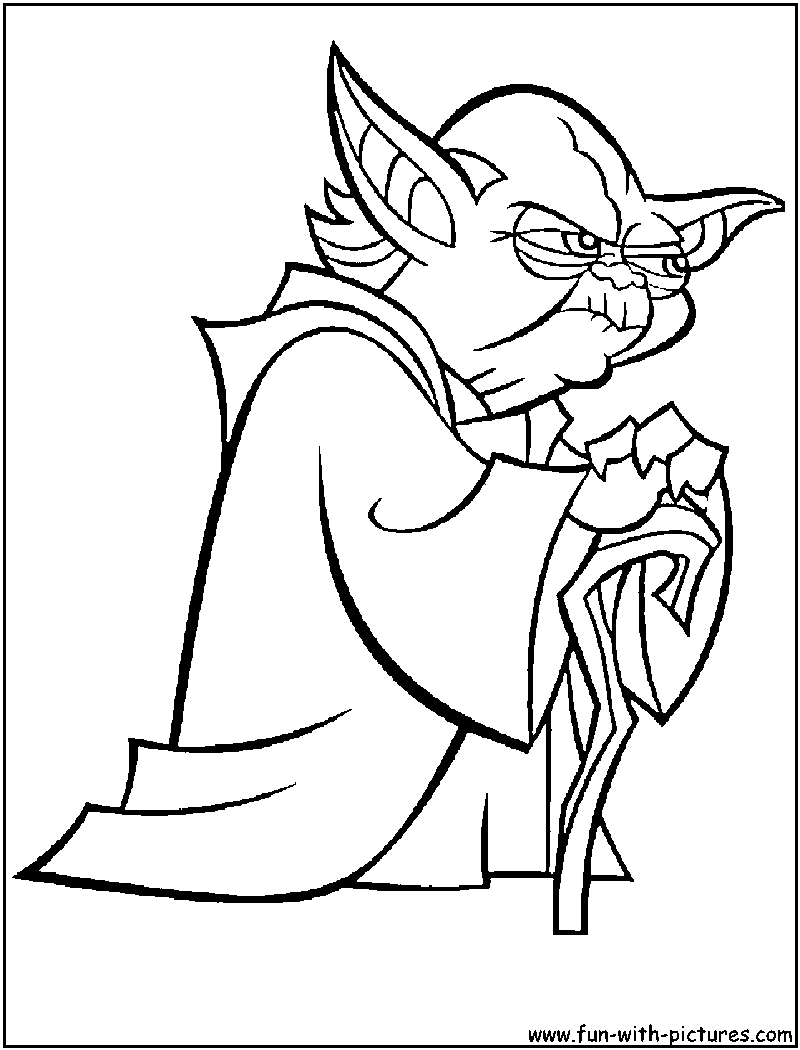
Photo Editing #8: Coloring a Line Art

Coloring a line art image is basic on the surface, but to really get a quality result [and something you can get creative with] you should begin by separating the black lines from the white page.  Here are some steps to help you through this project:
Step 1: Begin by finding a good example of a line art image.  You can specify in your Google Search that you want large, line art images -- try this search for an example.
PHOTOSHOP:

Step 2: Do a SELECT > COLOR RANGE and then click on the white area of your picture.  Drag the "fuzziness" up a bit to catch any straggler pixels.
Step 3: Press DELETE and also delete the background layer.  You should see a line art image with a checkered [transparent] background.
Step 4: Create a new layer and drag it beneath the Line Art layer.  Use the paintbrush to put down a good "foundation coat" which you can do without worrying about the lines.
Step 5: Click on the Line Art layer, select the Magic Wand tool, and click on the empty background area.  This should select everything around the object you are coloring.  Now click back on the "foundation coat" layer and press DELETE.  This should clean up the edges of your object (see above).
Step 6: Use your DODGE tool (looks sort of like a round push pin) and a small brush to add some highlights to areas where you would expect to see them.  In this example I assumed the light was coming from the top-left so I added highlights to the top of the dome, the top of the instruments, and along the tops of other ridges.
Step 7: Use the BURN tool (looks like a pinching hand) and a small brush to add "shadows".  I added shadows on the underside of instruments, under the lips of overhangs, under the extending spheres, etc.
Step 8: If you have spherical/rounded objects (such as the circles on the bottom of the Dalek), go to the Line Art layer and select the object(s).  If you have multiple objects (above) hold shift and select all of them.  Then I like to expand the selection a little by going to SELECT > MODIFY > EXPAND and then 1 pixel.  This will allow the new layer to slightly expand beyond the "holes you're putting them in.
Step 9: Create a new layer and use the paintbrush to paint into your selections.  We will add a bevel to these new pieces in the next step.
Step 10: Go to LAYER > LAYER STYLE > BEVEL & EMBOSS and adjust the settings until you get the roundness you want.
Step 11: Add details, textures, colors, etc.
Step 12: You can also add a background and a foreground if you choose.

Here are a couple more examples:


Photo Editing #4: Colorize a Black & White (Spray On Color)

Today we will be learning to colorize a black and white image.  The image we are starting with, however, is already in color.  What we will do is take this image into PhotoShop, convert it to black & white, then colorize it.

1.  Click on the image (below) to view it full-size.
2.  Right-click and save the image to your folder.

3.  Open the image in PhotoShop.
4.  Convert it to Black & White by going to:  IMAGE > MODE > GRAYSCALE
5.  Balance it by going to: IMAGE > ADJUSTMENTS > AUTO CONTRAST
6.  Convert the image back to RGB Color by going to:  IMAGE > MODE > RGB COLOR
7.  Create a new layer:  LAYER > NEW > LAYER
8.  Pick a bright color (pink, blue, red, etc.)
9.  Choose a soft (feathered) brush and paint on your new layer over an object (hat, pants, overalls, etc.).  Don't worry about the bright, ugly color because we're going to adjust that in the next step.
10.  Next, adjust the opacity (transparency) of your painted layer by clicking the arrow next to OPACITY above the Layer.  Drag the arrow left or right to adjust the opacity. 

This is a quick example of the project:

Here are a few examples of adding color to a black & white photograph to create different effects:


If [for some reason] you don't see your layers, click F7.


Also, if you have access to YouTube you can check out this video tutorial that I put together a few years ago.  It's on a Macintosh, but the concepts are the same:

Photo Editing #3: Basic Retouching

BASIC RETOUCHING

Today we are going to explore some photo retouching.  Next we will be creating a "before and after" picture to save to our portfolios.

First we will get an original source image to work with:
  1. Begin by right-clicking the image below and selecting "Copy Image" or "Copy" (depending on which browser you are using). 
  2. Open Photoshop and select FILE > NEW
  3. Select EDIT > PASTE
  4. Use the tools I demonstrate in class to touch up the photograph 


Next we will create the Before & After picture:
  1. Select IMAGE > CANVAS SIZE
  2. Change your settings to "PERCENT"
  3. Click on the "Right Arrow"
  4. Change your Width to 200% and click OK
  5. You should now have an image with space on the left
  6. Copy the original image (from this web page) again
  7. Paste the image into your Photoshop document and drag it to the left (as the "before" image)
  8. Use the Text tool to add your name to the image.
  9. Save your image to your Thawspace as a PSD and as a JPG
Next we will upload these pictures to our portfolio:
  1. Open your Blogger account (you may want to open Gmail and then go to http://www.blogger.com/).
  2. Select your "Portfolio" page.
  3. Click "New Post"
  4. Click the "Image" button in the post window.
  5. Locate and select your picture (the JPG version), then click "OK"
  6. Click on the picture in your post and select the size you want it displayed.
  7. Write a brief summary of what this project is about (either before, after, or on either side of your image).
  8. Click "Publish"
  9. Click "View Blog" (at the very top of your window)

Finally, choose another picture that you can retouch.  I'm attaching a couple examples, but you can select another image if you like.  (I recommend clicking the picture to view it full-size before copying it.)


Thursday, September 21, 2017

Photo Editing #2: Collage

Today and tomorrow we are going to build a collage that we can use as a computer wallpaper. The collage must have a theme, include several images, have some sort of text (i.e. a title), and fit the dimensions of a typical computer screen.

You will have the next two days to build your collage.
  1. Create a new Photoshop document using your choice of the following dimensions:  (Dimensions from W3Schools 9/19)
    1. 1920x1080 (17% of computer screens use this resolution) 
    2. 1366x768  (35% use this resolution)
    3. 1280x1024  (5%)
    4. 1242x2208  (Apple iPhone 7)
  2. Sometimes it's better to fill your canvas with a certain color (i.e. black, blue, or green) to serve as a base for your pasted images, although you can create some interesting collages by using a textured background or even an image (i.e. the example showing Asian writing).
  3. Begin finding images [within your theme as well as being classroom appropriate] and save them to a folder on your Thawspace or USB drive.  Make sure the images are large enough that you don't have to stretch them on your canvas.
  4. Begin "pasting in" images and dragging them to the best fit on your canvas.
  5. You may want to use a soft, feathered brush as an eraser and soften the edges of your images.
  6. You may also want to try adjusting the opacity on some of your images [layers] to help the layers "melt together" better.
  7. You may even try a color gradient overlay with low opacity for some interesting effects.
  8. Choose a font that fits your theme, and place a title on your page.
  9. Choose a small font and put your name on your new artwork.
  10. Try some layer styles (drop shadows, bevel & emboss, stroke, etc.) to improve your text layer.
Finally, make sure you save your file as a PSD (Photoshop Document) as well as a JPEG, then upload the JPEG to your Blogger portfolio.

Here are some examples of Photoshop collages: